Setting up QuickBooks for small business accounting can seem challenging. Yet, it is an essential step for managing finances effectively.
QuickBooks helps small business owners track income, expenses, and profits. It makes accounting tasks easier, saving time and reducing stress. Many small businesses choose QuickBooks for its user-friendly design and robust features. Knowing how to set it up correctly can help you keep your financial records organized.
This setup allows you to generate reports, send invoices, and manage payroll efficiently. Understanding the basic steps to set up QuickBooks will empower you to take control of your business finances. With a clear guide, you can turn QuickBooks into a valuable tool for your small business success.
Introduction To Quickbooks For Small Business
QuickBooks helps small businesses with their accounting needs. It makes managing money simple and easy. With QuickBooks, you can track sales, expenses, and profits. This software saves time and reduces errors.
Many small business owners choose QuickBooks. It is user-friendly and does not require special training. You can access it from anywhere, which adds flexibility. It also offers reports that help you understand your business better.
QuickBooks keeps all your financial information in one place. This makes it easy to find what you need. Plus, it can connect with your bank account. This helps you reconcile your transactions quickly.
Overall, QuickBooks is a great tool for small businesses. It helps you stay organized and informed.
Initial Setup Process
Start by visiting the QuickBooks website. Click on “Sign Up.” Fill in your details to create a QuickBooks account. Choose a strong password. This helps keep your data safe.
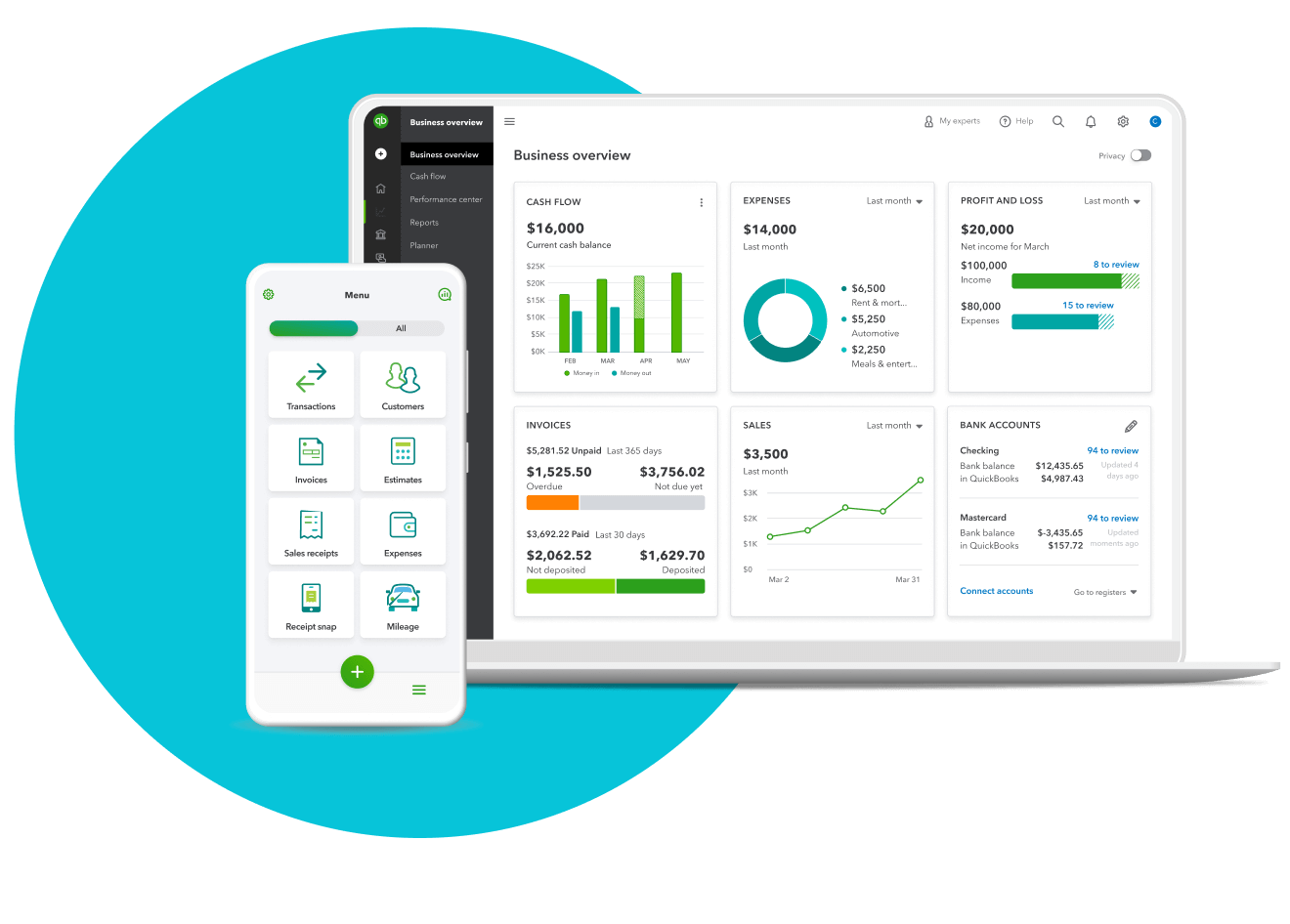
After signing up, log in to your account. Familiarize yourself with the QuickBooks interface. Look for the dashboard. It shows your financial overview. Check the menu on the left side. Here, you can access different features.
Explore options like invoices, expenses, and reports. Each section helps manage your finances better. Take your time to learn where everything is.
Customizing Your Company Profile
Start by entering your business name. This is important for identity. Next, provide your business address. It helps customers find you.
Then, add your contact information. Include a phone number and email. This makes it easy for clients to reach you.
Set the financial year. Choose the start and end dates. This helps with accurate accounting.
Make sure to save your changes. This keeps all your information safe. Review everything before moving on.
Managing Your Chart Of Accounts
Account types help you organize your business finances. Common account types include:
- Assets: Things you own, like cash and equipment.
- Liabilities: Money you owe, like loans or bills.
- Equity: Owner’s share in the business.
- Income: Money you earn from sales.
- Expenses: Money spent on business costs.
Adding accounts is simple. Go to the Chart of Accounts section. Click New to create an account. Fill in the type and name. Save your changes.
To edit accounts, find the one you want to change. Click on it, then choose Edit. Update the details and save.
Connecting Bank And Credit Accounts

Linking your bank accounts to QuickBooks is easy. Start by logging into your QuickBooks account. Go to the Banking menu and select Link Account. Enter your bank’s name and sign in with your online banking details. QuickBooks will connect to your bank and download your transactions.
To reconcile transactions, go to the Banking tab. Click on Reconcile and choose the account you want to check. Compare your bank statement with QuickBooks records. Mark matching transactions as cleared. This helps you see if your records are correct. Fix any discrepancies you find.
Setting Up Customers And Vendors
To add customer information, go to the Customers tab. Click on “New Customer.” Fill in the customer’s name and contact details. You can also add their address. This helps keep track of who buys from you.
For managing vendor details, select the Vendors tab. Click on “New Vendor.” Enter the vendor’s name and contact info. Include their address too. This allows you to manage who you buy from easily.
Both steps help organize your business better. Good records make it easy to find information. This saves time and helps with good decisions.
Handling Sales And Invoicing
Creating invoices is a key part of managing your sales. QuickBooks makes this easy. Start by opening the invoice section. Fill in the customer details. Add the product or service sold. Make sure to include the price.
Check that everything is correct before sending. You can send invoices by email directly from QuickBooks. Save a copy for your records. Tracking sales and payments is also simple.
Use the sales dashboard to see all sales. It shows what has been paid and what is still due. This helps keep your business organized and informed. Stay on top of your finances with QuickBooks.

Credit: www.fourlane.com
Expense Tracking And Bill Payment
Recording expenses is easy with QuickBooks. Start by clicking on the “Expenses” tab. Then, choose “New Transaction” and select “Expense.” Fill in the details like the amount, date, and vendor. Add a note if needed. This helps you remember later.
Next, scheduling bill payments is simple. Go to the “Vendors” menu. Select “Pay Bills.” Choose the bills you want to pay. Set the date you want to pay them. QuickBooks will remind you when bills are due. This keeps your business on track.
Payroll Configuration
Start by adding your employees in QuickBooks. Go to the “Employees” tab. Click “Add Employee” and fill in their details. Include names, addresses, and Social Security numbers. Make sure to enter the correct pay rate.
Next, set up their payroll schedule. Choose how often you pay them, like weekly or biweekly. This helps QuickBooks know when to process payments.
Now, focus on payroll taxes. QuickBooks can calculate taxes for you. Enter your business’s tax information. This includes federal and state tax IDs.
Also, set up benefits and deductions. This may include health insurance or retirement plans. QuickBooks will deduct these amounts automatically.
Finally, review everything before processing payroll. Check for any mistakes. This ensures your employees get paid correctly.
Reporting And Analysis
Generating Financial Reports is a key part of QuickBooks. It helps you see how your business is doing. You can create reports like profit and loss, balance sheets, and cash flow statements. These reports show how much money you made and spent.
To make a report, go to the Reports tab. Choose the report you want. Set the date range to see the right time. Click Run Report to view it. You can also print or export the report as a PDF.
Analyzing Business Performance is important for growth. Look at your reports regularly. They help you understand where to improve. Check your expenses and income trends. This way, you can make smart choices for your business.
Tax Preparation And Filing
Organizing your tax documents is very important. Start by keeping all receipts together. Use folders or boxes for different categories. For example, have one for income, another for expenses. This makes finding documents easier.
Using QuickBooks for tax filing can save time. It helps track your income and expenses automatically. Regularly update your records. This ensures everything is ready when tax time comes. QuickBooks also makes it easy to generate reports. These reports show how your business is doing financially.
Remember to check for any tax deductions. QuickBooks can help find these. Keeping everything organized will make the filing process smoother.

Credit: www.youtube.com
Troubleshooting Common Issues
Bank feed errors can be frustrating. They stop you from seeing your money correctly.
First, check your bank’s website. Make sure your login works there. If it does, go back to QuickBooks.
Next, update QuickBooks. Sometimes, older versions cause problems. Updates fix many issues.
If problems continue, disconnect and reconnect the bank feed. This often solves the issue. Just go to the bank feed settings.
For data sync problems, check your internet connection. A weak connection can cause delays.
Also, clear the cache. This can help QuickBooks work better. If problems persist, contact QuickBooks support.
Expanding Quickbooks Capabilities
QuickBooks can work well with many other apps. This makes your tasks easier.
Integrating QuickBooks with other tools helps save time. Popular apps include:
- PayPal for quick payments
- Shopify for online sales tracking
- Square for point-of-sale systems
Exploring advanced features can help you do more. Some features to check out:
- Custom reports
- Inventory management
- Automated invoicing
Using these features can make accounting easier. You can focus on growing your business.
Credit: quickbooks.intuit.com
Frequently Asked Questions
How Do I Start Quickbooks For My Small Business?
To start QuickBooks, first create an account on their website. Download and install the software on your computer. Follow the on-screen setup wizard to enter your business information. Finally, customize your chart of accounts according to your specific business needs.
What Are The Benefits Of Using Quickbooks?
QuickBooks simplifies financial management for small businesses. It automates tasks like invoicing and expense tracking. This software provides accurate financial reports, which help in decision-making. Additionally, it improves cash flow management and ensures tax compliance, saving both time and money.
Can I Use Quickbooks On Multiple Devices?
Yes, QuickBooks can be accessed on multiple devices. You can use it on your computer, tablet, or smartphone. QuickBooks Online allows you to work from anywhere with internet access. This flexibility enables real-time updates and collaboration with your team or accountant.
Is Quickbooks Suitable For Freelancers?
Absolutely! QuickBooks is great for freelancers. It helps manage invoices, expenses, and payments efficiently. With features tailored for solo entrepreneurs, it simplifies financial tracking. This allows freelancers to focus on their work while ensuring their finances are organized.
Conclusion
Setting up QuickBooks for your small business is a smart choice. It helps track your money and simplifies accounting tasks. Follow the steps outlined in this guide. Take your time to understand each feature. Regularly update your financial records for accuracy.
Remember, consistent use brings better results. This tool can help you make informed decisions. You will gain better control over your finances. Start today and watch your business grow. QuickBooks is a reliable partner for your accounting needs.